> ## Documentation Index
> Fetch the complete documentation index at: https://docs.vidnavigator.com/llms.txt
> Use this file to discover all available pages before exploring further.
# MCP Server
> Use natural language to interact with VidNavigator through Cursor and Claude Desktop
## VidNavigator MCP Server
The VidNavigator MCP (Model Context Protocol) Server enables you to search, analyze, and transcribe videos directly from your AI coding assistant. Available for both **Cursor** and **Claude Desktop**.
Search for videos using natural language with advanced AI analysis and relevance ranking.
Get comprehensive analysis of YouTube videos with summaries, key insights, and Q\&A.
Extract YouTube video transcripts quickly without full analysis.
Transcribe videos from Instagram, TikTok, Facebook, and other social platforms.
## Quick Setup
### For Cursor Users
Visit [VidNavigator](https://vidnavigator.com) → User → Dev-tools to get your free API key.
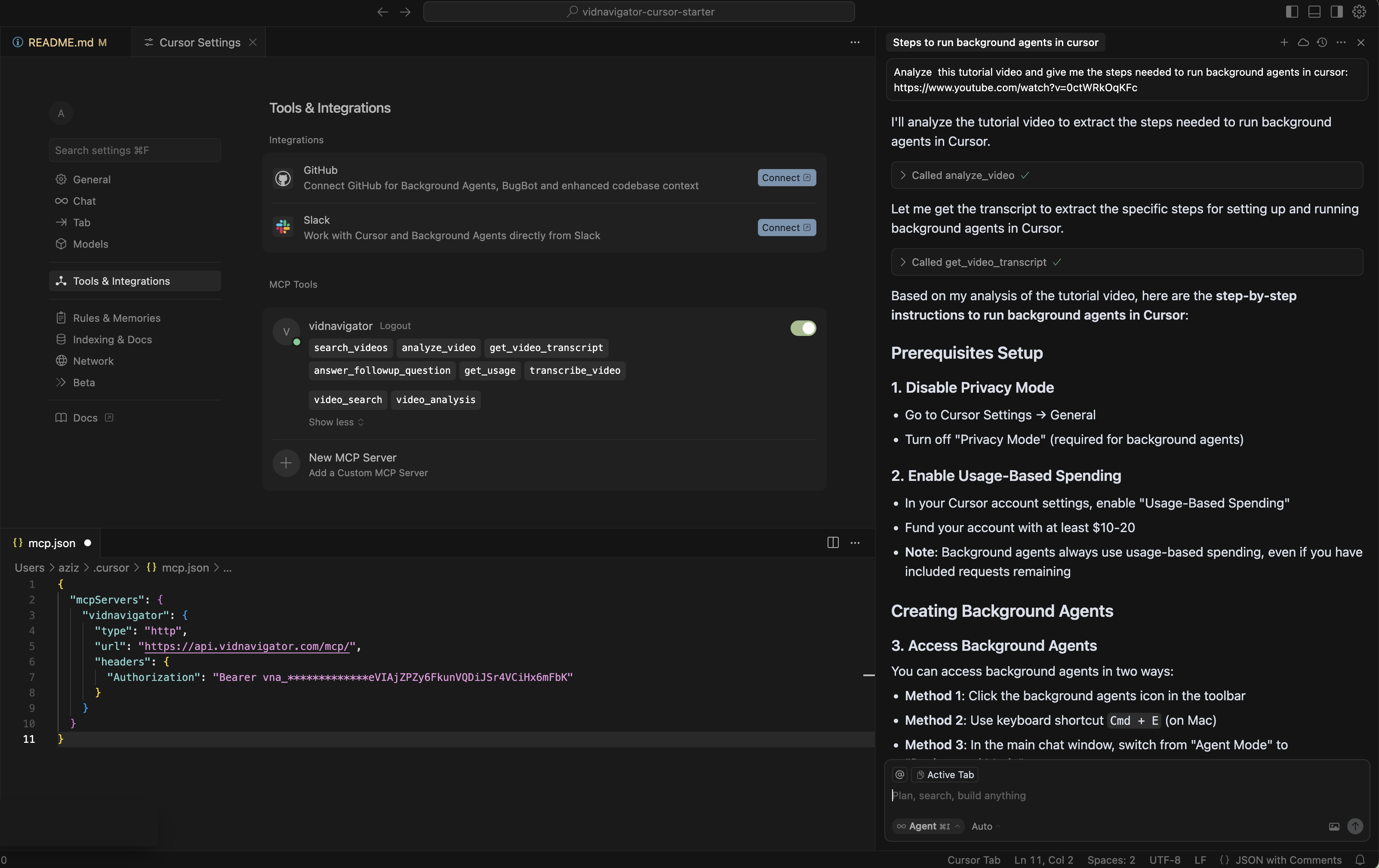
Open Cursor → Settings → Tools and integration → Add MCP server, then paste:
```jsonc theme={null}
{
"mcpServers": {
"vidnavigator": {
"type": "http",
"url": "https://api.vidnavigator.com/mcp/",
"headers": {
"Authorization": "Bearer YOUR_API_KEY_HERE"
}
}
}
}
```
Replace `YOUR_API_KEY_HERE` with your actual API key.
You can now ask questions like:
* "Find a video where Neil deGrasse Tyson explains gravity"
* "Summarize this YouTube video: [https://youtube.com/watch?v=xyz](https://youtube.com/watch?v=xyz)"
* "What did the speaker say about climate policy?"
## Automate with n8n
You can integrate VidNavigator into your custom workflows with [n8n](https://n8n.io/), an open-source automation tool. This allows you to build powerful automations for searching, analyzing, and transcribing videos.
Watch this video to learn how to set up an n8n workflow that connects to the VidNavigator MCP server, and follow the steps below.
Start by creating a new, empty workflow in your n8n instance.
Add an **AI Agent** node. Inside the node, connect it to your preferred Large Language Model (LLM), such as OpenAI, and configure a memory option.
Add the native **MCP Client** tool from n8n. This client will connect to the VidNavigator MCP server, giving your workflow access to all the available video tools.
In the MCP Client node, set the **Server URL** to `https://api.vidnavigator.com/mcp/` and ensure the transport is set to `HTTP Streamable Server`.
Generate a new API key from your [VidNavigator Dev Tools](https://vidnavigator.com/studio/api). In the MCP Client node, set up a header with the name `X-API-Key` and paste your API key as the value.
Connect the MCP Client to the AI Agent. You can now send natural language prompts to the AI Agent to search, analyze, or transcribe any online video.
### For Claude Desktop Users
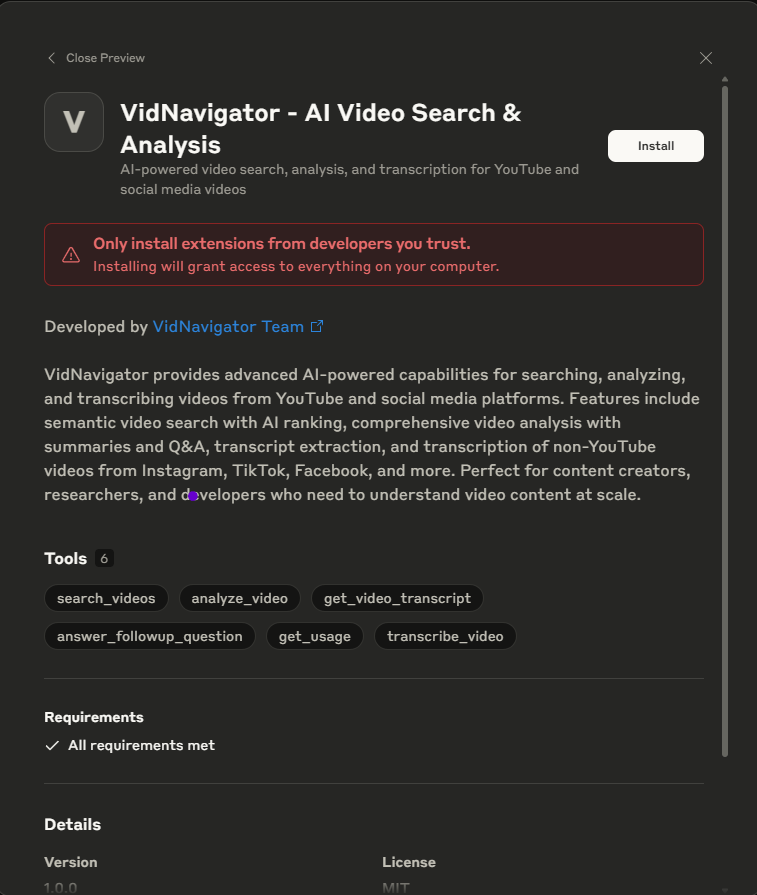
Download the latest extension from [GitHub Releases](https://github.com/vidnavigator/vidnavigator-mcp-starter/releases/latest) (`.dxt` file).
Visit [VidNavigator](https://vidnavigator.com) → User → Dev-tools to get your free API key.
Open Claude Desktop → Settings → Extensions → Install Extensions
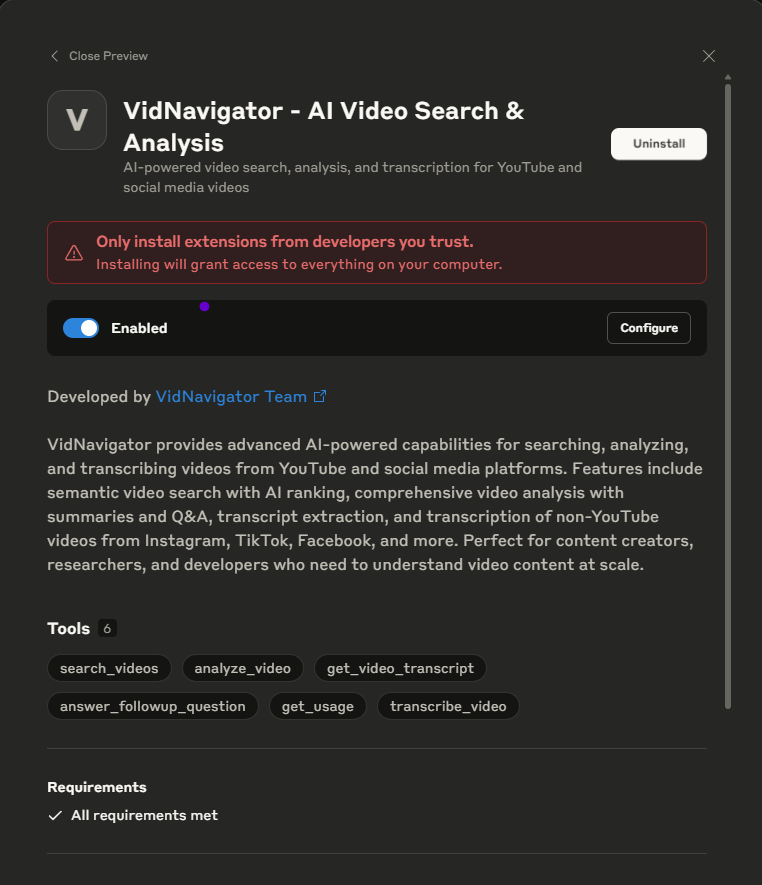
Select the downloaded `.dxt` file and follow the installation prompts.
Configure your API key in the extension settings and enable the extension.
You can now interact with videos directly through Claude Desktop!
## Available Tools
Search for videos with AI analysis and ranking using natural language queries.
**Example**: "Find videos about React performance optimization"
Analyze video content and generate comprehensive summaries with key insights.
**Example**: "Analyze this video: [https://youtube.com/watch?v=xyz](https://youtube.com/watch?v=xyz)"
Extract video transcripts quickly without full analysis.
**Example**: "Get the transcript for this video: [https://youtube.com/watch?v=xyz](https://youtube.com/watch?v=xyz)"
Transcribe non-YouTube videos from platforms like Instagram, TikTok, Facebook.
**Example**: "Transcribe this TikTok video: [https://tiktok.com/@user/video/123](https://tiktok.com/@user/video/123)"
Ask specific questions about previously analyzed videos.
**Example**: "What did the speaker say about the main challenges?"
Check your API usage and subscription limits.
**Example**: "How many API calls have I made this month?"
## Example Queries
Here are some example queries you can try with the MCP server:
```text Video Search theme={null}
"Find a video where Neil deGrasse Tyson explains gravity"
```
```text Video Analysis theme={null}
"Summarize this YouTube video: https://youtube.com/watch?v=dQw4w9WgXcQ"
```
```text Transcript Extraction theme={null}
"Give me the transcript for this video: https://youtube.com/watch?v=xyz"
```
```text Social Media Transcription theme={null}
"Transcribe this TikTok video: [link]"
```
```text Follow-up Questions theme={null}
"What did the speaker say about climate policy in the last video?"
```
```text Usage Tracking theme={null}
"How many vidnavigator calls have I made this month?"
```
## API Usage & Limits
All MCP server tools are subject to your [VidNavigator](https://vidnavigator.com) subscription plan:
* **Free Plan**: Limited requests per month
* **Paid Plans**: Higher limits based on plan tier
Use the `get_usage` tool to check your current usage and remaining limits at any time.
## Support
Need help with the MCP server setup or have questions?
View source code and documentation
Report bugs or request features
Test the MCP server API endpoints
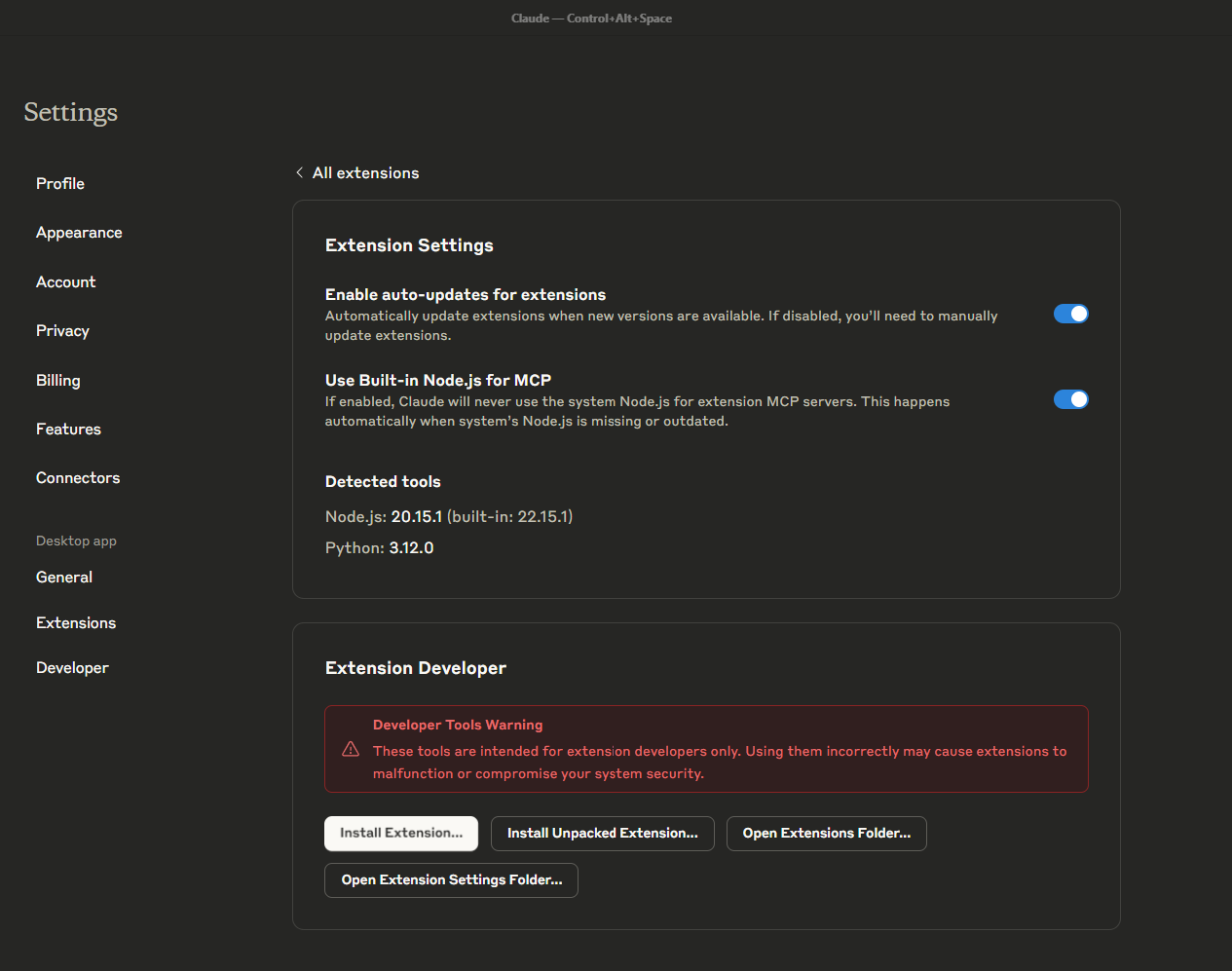 Select the downloaded `.dxt` file and follow the installation prompts.